DrivioCam for Android Phones

It is also available for iPhones

DrivioCam is offered on both iOS and Android phones, with nearly identical feature sets across platforms acept Android version has one more important feature.
Android version of DrivioCam turns your smartphone into a smart, affordable, and feature‑rich dash camera. Reuse a spare phone or directly use your current daily Android device as a dash cam while still running Google Maps or any other navigation app. Drive with continuous recording, parking‑mode motion detection, and simple, intuitive video management which play, share videos in a few taps.
Overview
DrivioCam helps drivers capture road footage, store key trip details, and protect important moments. It can automatically switch between driving mode and parking mode, record impact-related events, and save footage that should not be overwritten.
With built-in G-force sensing, the app can detect sudden deceleration or impact-like motion and immediately lock critical footage for later review, insurance claims, or incident documentation.
Why Drivers Choose DrivioCam
Cost-Effective and Eco-Friendly
Give an older phone a second life instead of buying dedicated dash cam hardware.
Works Alongside Navigation
Keep recording in the background while using Google Maps or another navigation app.
Smart Parking Protection
Monitor a parked vehicle and trigger recording only when motion is detected.
Full Trip Context
Capture footage with timestamps, speed data, and GPS-related location details.
Storage Control
Set storage limits so recordings do not take over the device, especially on a daily-use phone.
Easy Video Management
Browse, search, play back, delete, save, and share videos in just a few taps.
Privacy Friendly
Turn audio recording on or off based on your own preference and situation.
Global Reach
Available in 12 languages, with support for more languages planned.
Important Notes
Sensor accuracy: Speed and location accuracy depend on your device sensors, GPS signal quality, and granted app permissions.
Battery usage: Extended parking-mode use will drain the device battery. For longer monitoring sessions, keep the phone connected to continuous power such as a power bank or hardwired car outlet.
Android Feature Screens
Your Spare Phone Is a Dash Cam Now
Easy setup for everyday driving and parking protection.
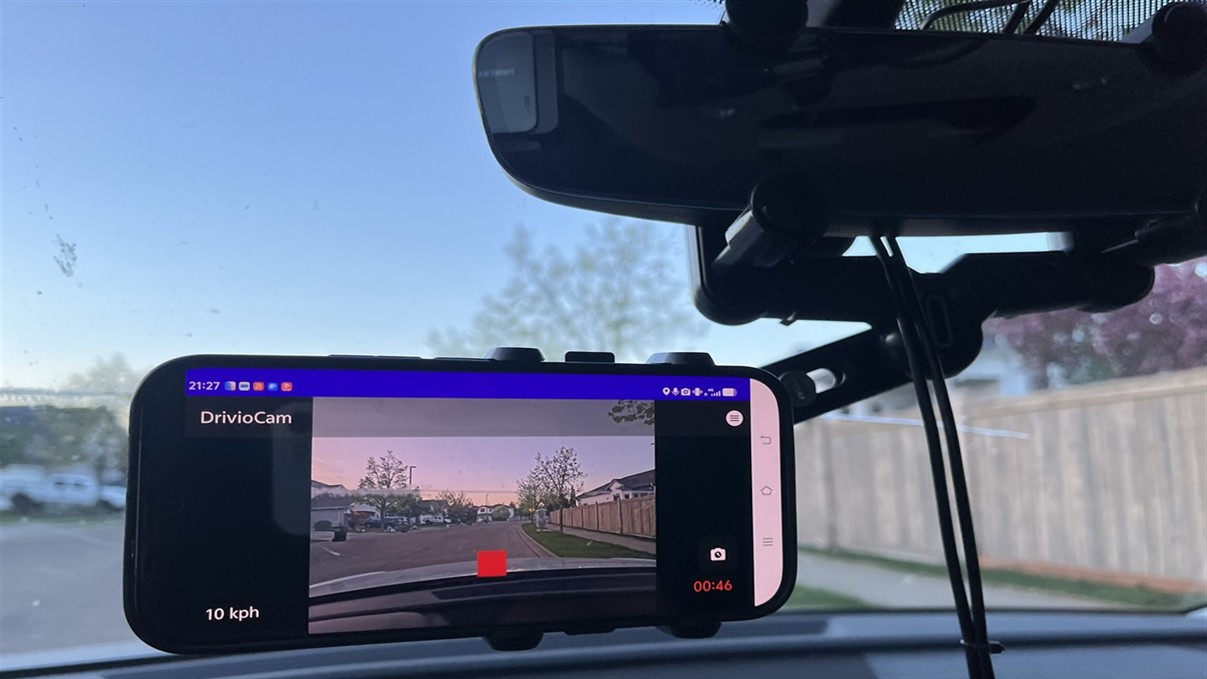
Mount your phone near the rear-view mirror for the recommended recording angle.
Record Every Drive with Time, Speed, and GPS Context
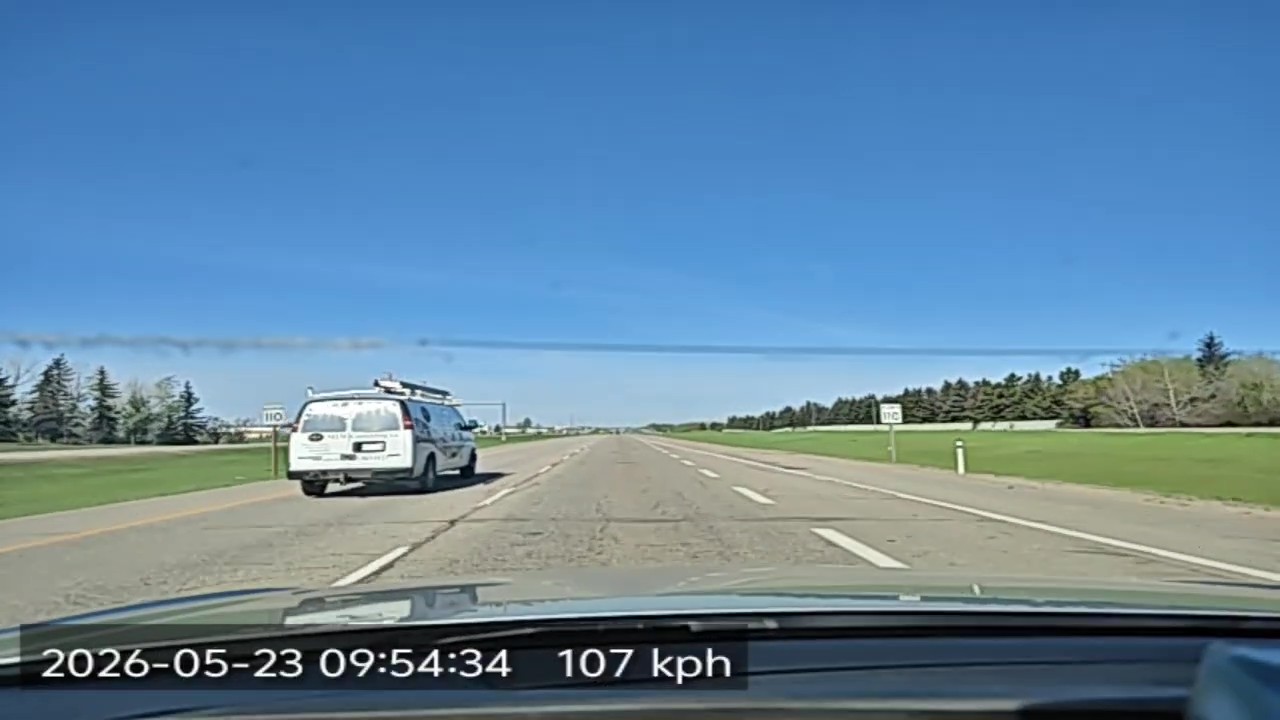
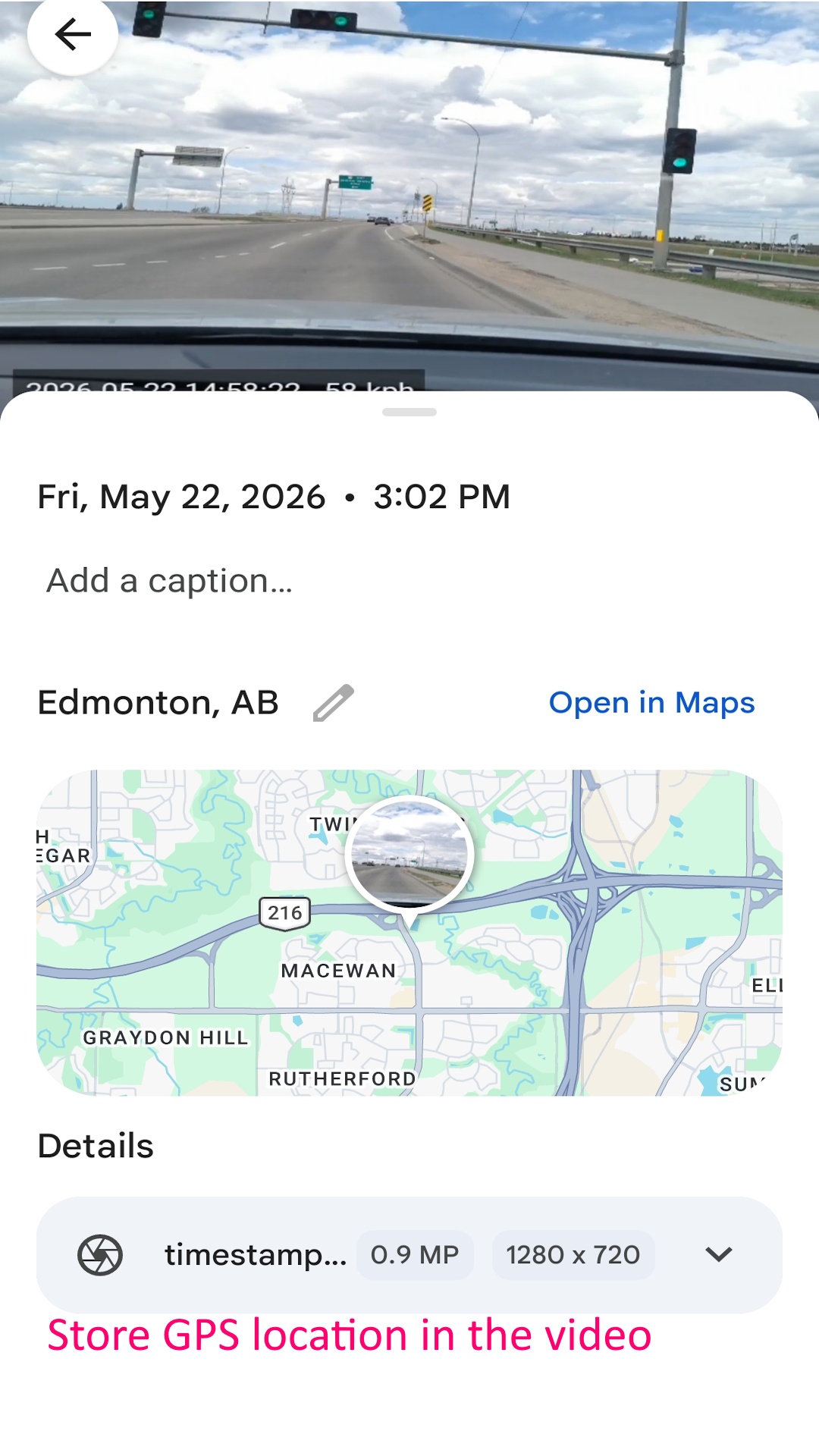
Capture the road with timestamps, speed information, and stored GPS location data in the video record.
- Record while driving.
- Replay saved video with timestamp and speed overlays.
- Review location information in the Gallery app or other supported apps.
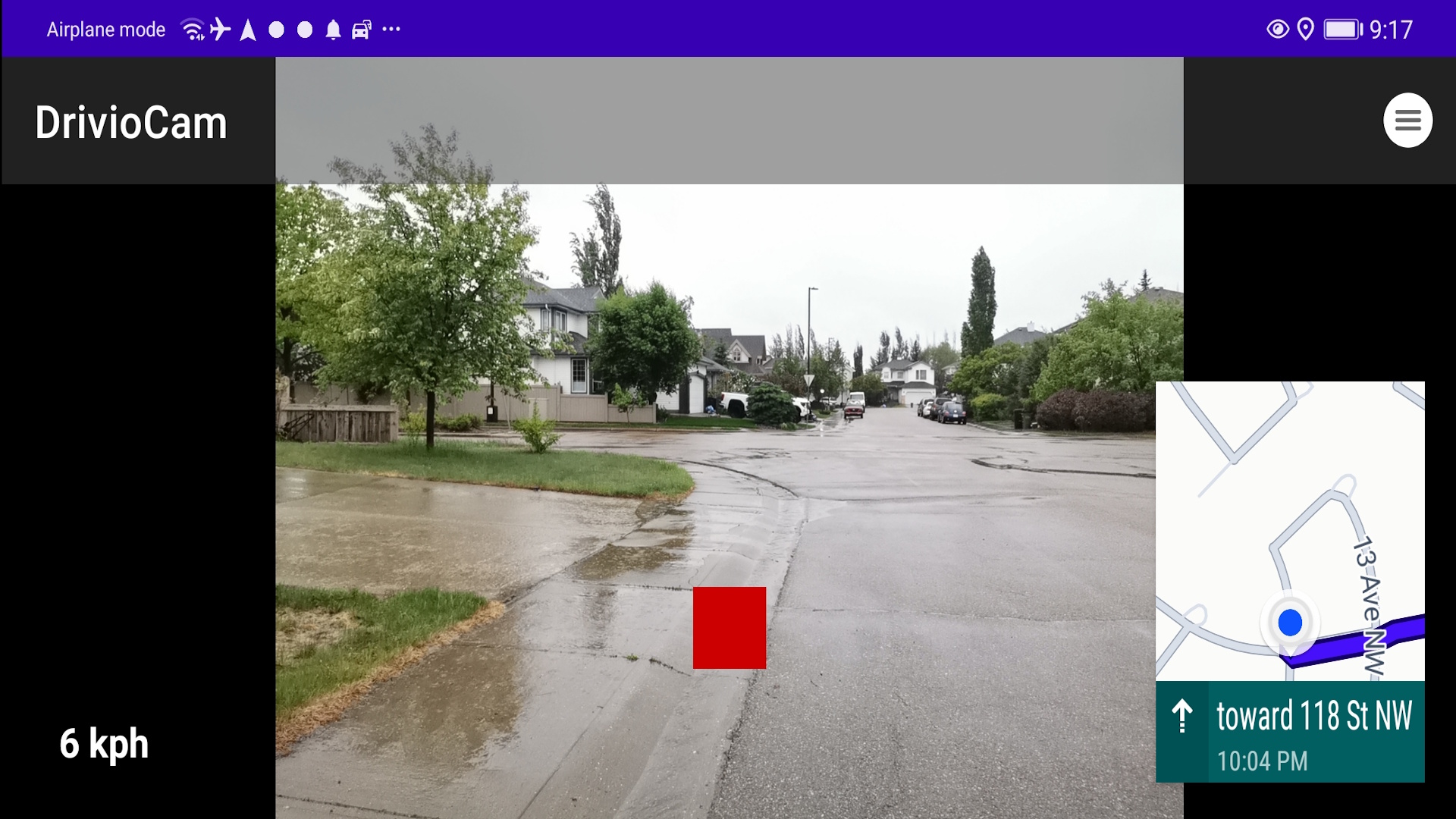
Record While Using GPS Navigation
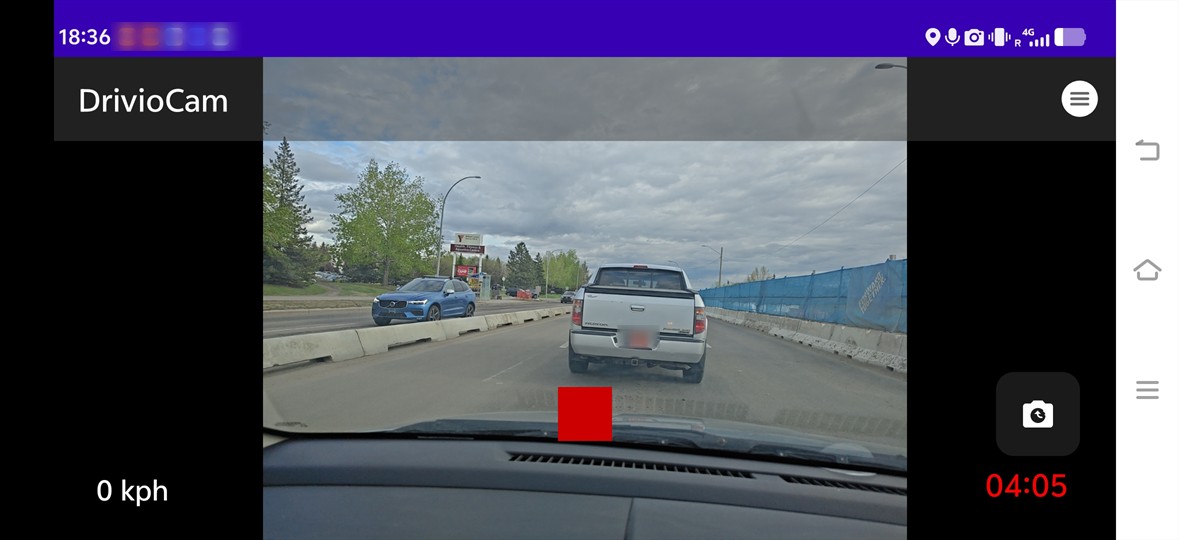
DrivioCam can keep recording as a dash camera while you navigate, so you do not need a dedicated spare device if you only have one Android phone.
How it works: Set your route in Google Maps or another navigation app, switch to DrivioCam, tap the record icon to start continuous recording, and then return to navigation. DrivioCam continues working in the background.
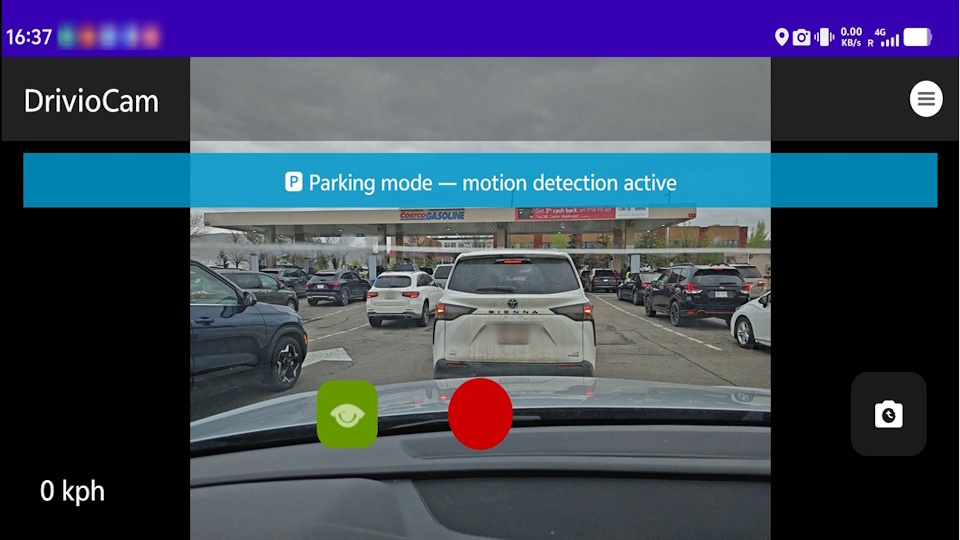
Automatically Switch Between Driving and Parking Modes
After the vehicle remains parked for more than two minutes, the app can switch to parking mode and enable motion detection. When you begin driving again, it can automatically return to continuous recording mode.
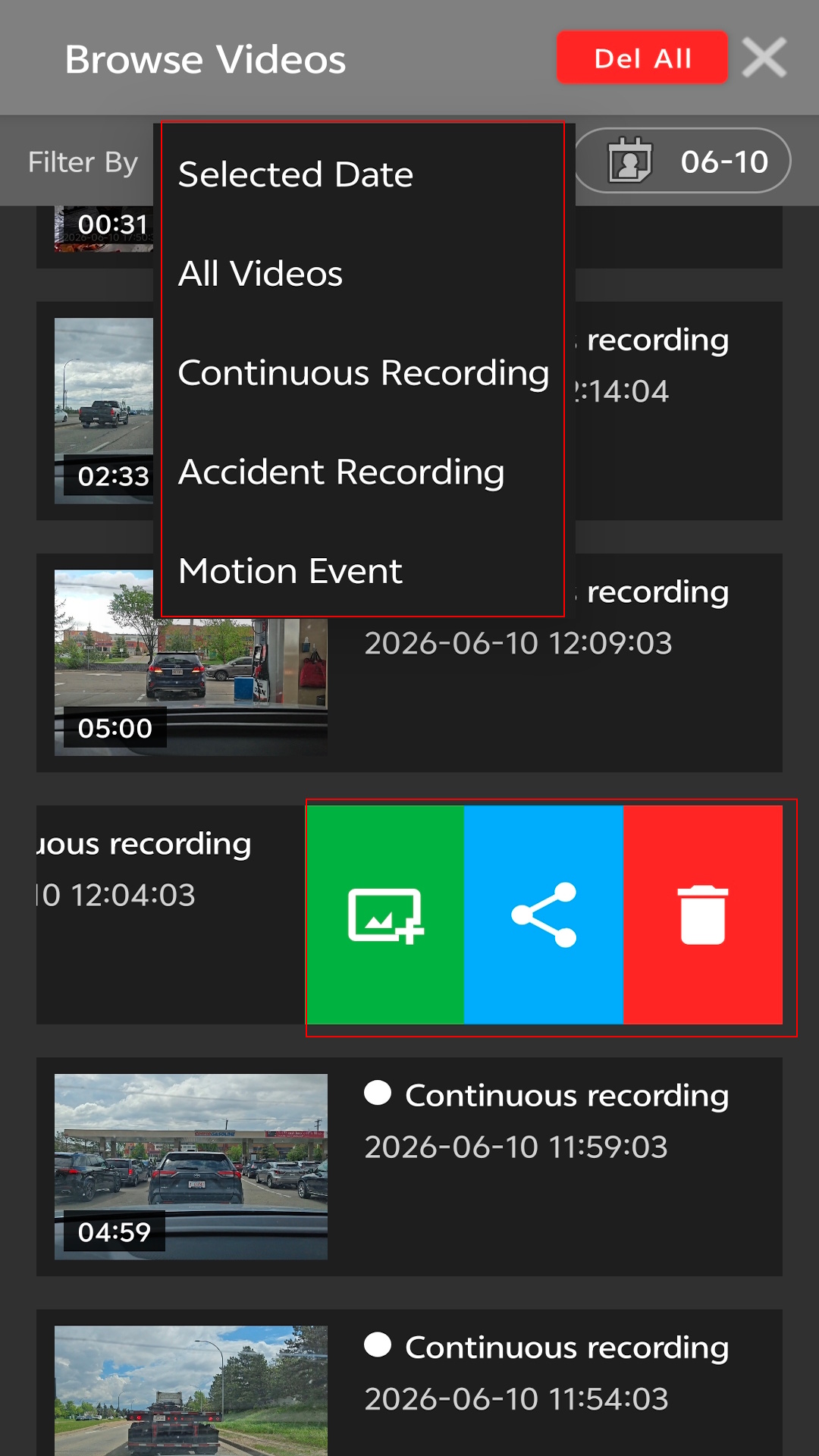
Browse, Play, and Share Videos Easily
Search, replay, and share recordings in a few taps. Filter videos by date or recording type, including continuous, motion, and accident clips.
- Delete a single video or remove all currently filtered videos with one tap.
- Save selected videos to the Gallery.
- Share videos through email, social apps, and other supported apps.
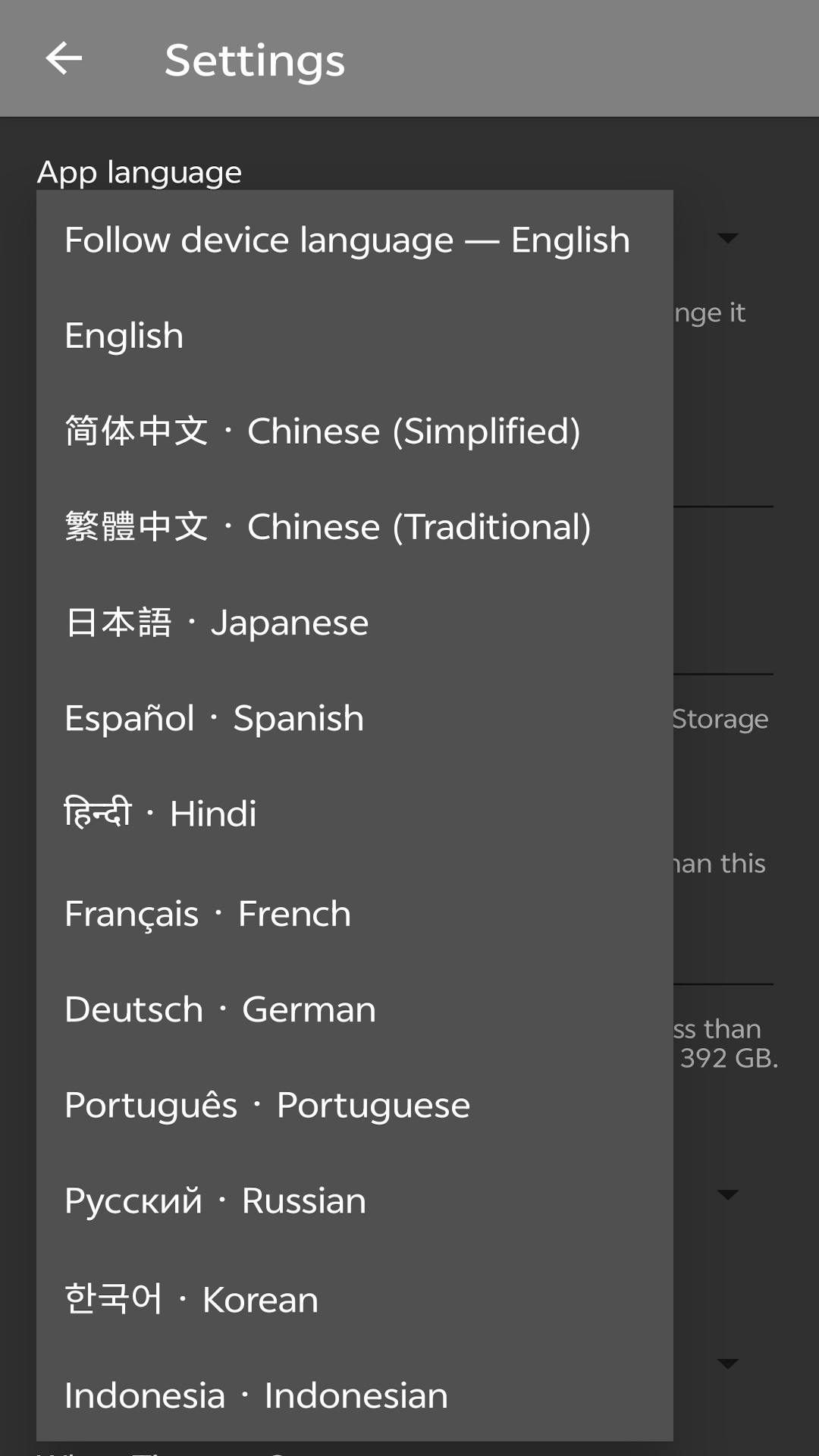
Support for 12 Languages
Users can choose from 12 languages.
When DrivioCam is installed for the first time, the app can prompt the user to match the device language when that language is supported.
Set Clip Length, Storage Limits, and Recording Resolution
Choose the duration of each continuous-recording file, set the maximum space DrivioCam can use, keep minimum storage free on the phone, and select recording resolution.
Storage limits are especially useful when DrivioCam runs on a daily-use phone because they help prevent the app from filling the device. The app also shows how much storage DrivioCam is already using.
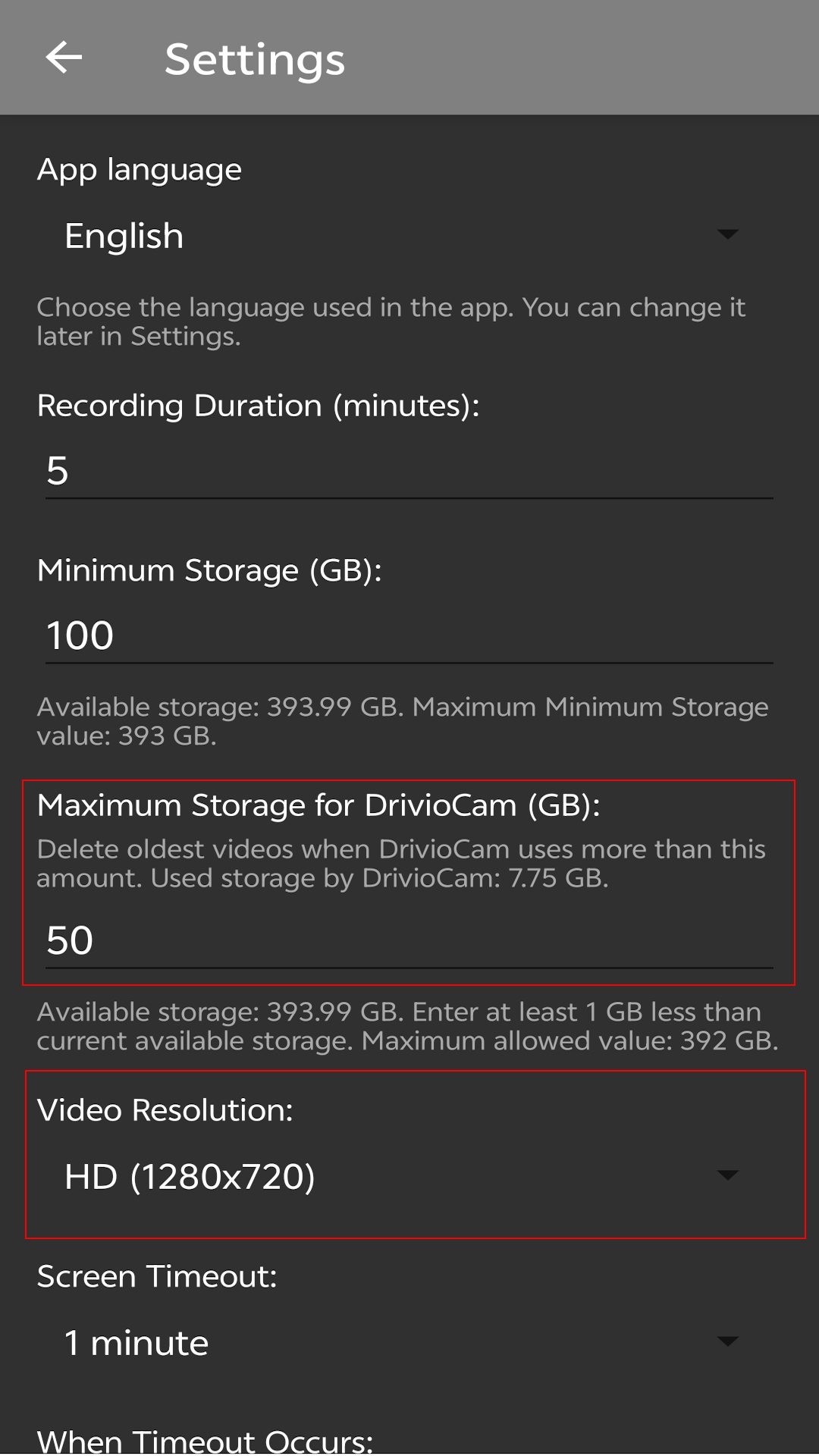
Adjust Overlays, Screen Timeout, Audio, and Camera Selection
Enable or disable timestamp overlays, choose screen timeout duration, and select whether the screen dims or turns off after timeout.
You can also disable audio recording and switch between the front and rear cameras here, or from the main screen.
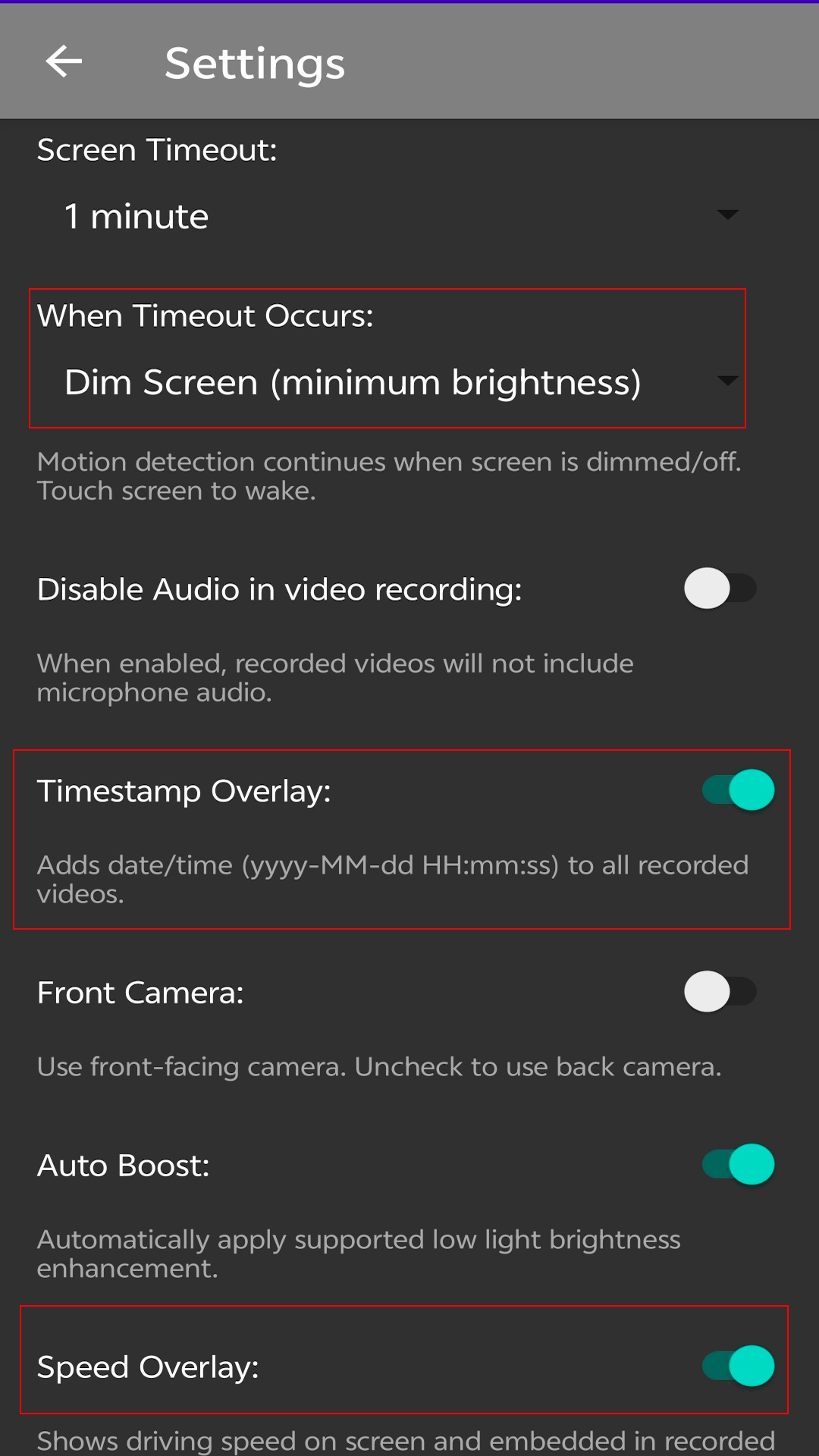
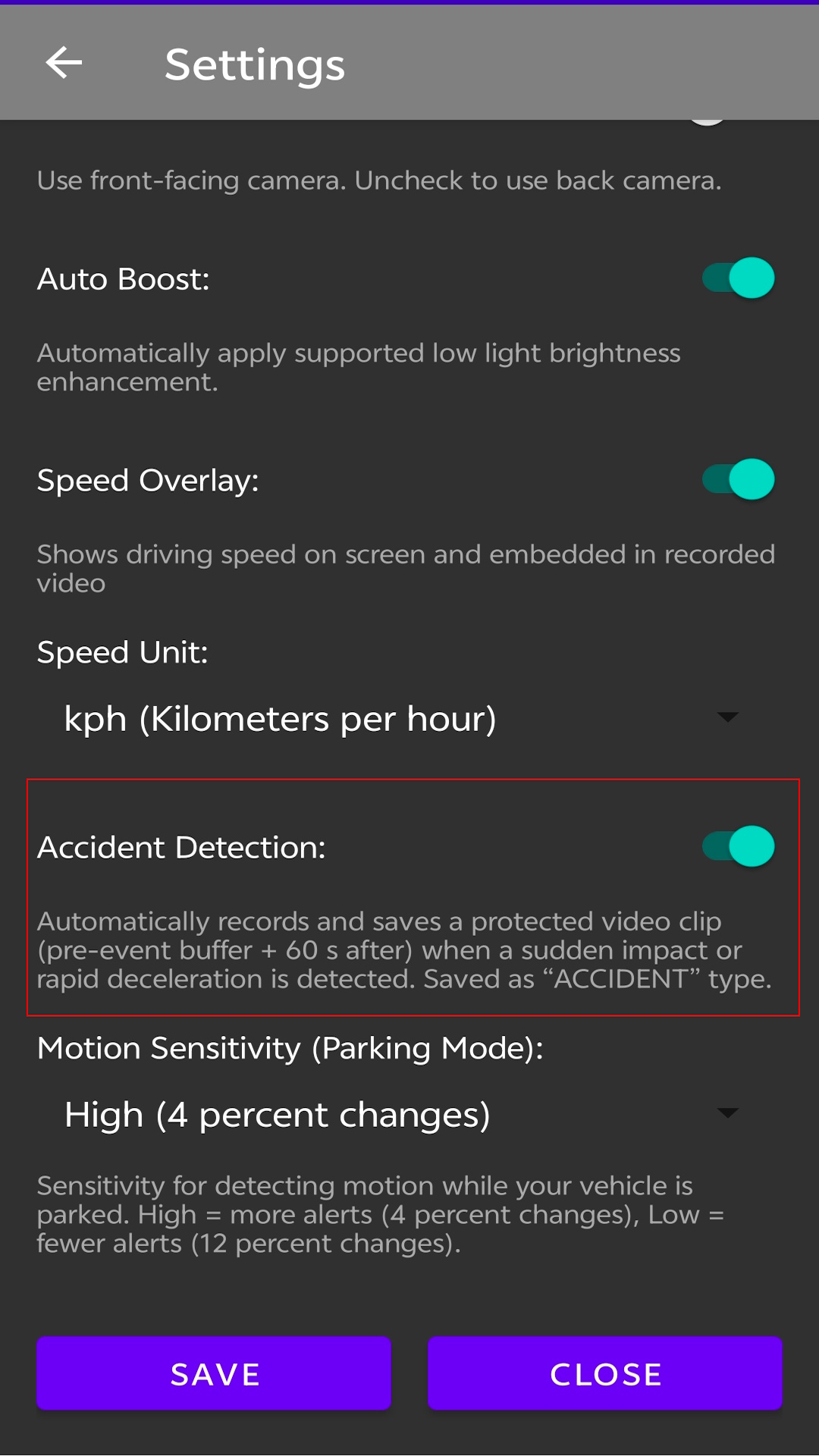
Control Speed Overlay, Accident Detection, and Motion Detection
Enable or disable the speed overlay, toggle accident detection and motion detection, and adjust motion-detection sensitivity.
Support
If you encounter any issues or would like to leave feedback for this app, please send an email directly to greensun168@gmail.com or visit the products area of this site.