DrivioCam guide & FAQ
Turn your smartphone into a smart Dash Cam now
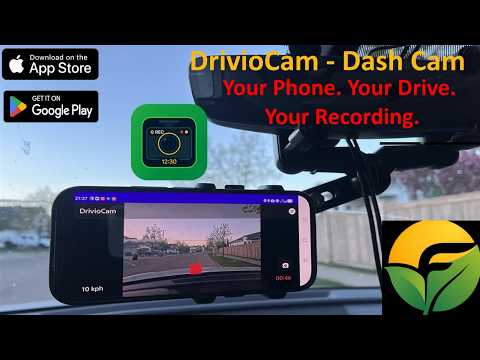
Download DrivioCam from the Apple App Store or Google Play.


Smartphone Dash Camera Questions, Answered
Learn what a dash camera does, how DrivioCam works on a compatible smartphone, and how to set it up for everyday driving.
Frequently Asked Questions
Select a question to read the answer. Configure your phone and mount before driving, and follow local laws on phone mounting, recording, and driver visibility.
What is a dash camera?
A dash camera, also called a dash cam, is a camera used in a vehicle to record video while you drive. Most record the road ahead; some dedicated systems also record behind the vehicle or inside the cabin. A dash cam can create a useful record of what happened during a trip.
Why do you need a dash camera when you drive?
A dash camera gives you your own video record of a drive. If an unexpected event occurs, footage may help document what happened and can be useful when discussing an insurance claim or another incident. It can also help you review driving situations and save interesting moments from road trips.
A dash camera does not replace attentive driving, insurance, or emergency services, and footage does not by itself determine fault.
What types of dash cameras are available in the market?
Common choices include front-only cameras, front-and-rear (dual-channel) cameras, and three-channel systems that record the front, rear, and cabin. Dedicated dash cameras may be mounted permanently or temporarily; smartphone dash cam apps use a compatible phone's camera instead. Products also vary by features such as loop recording, GPS, parking monitoring, screen size, cloud services, and power connection.
How does DrivioCam compare with a dedicated dash camera?
DrivioCam uses a compatible smartphone you already own, making it an affordable and flexible way to start recording without buying separate dash-cam hardware. You can use a daily phone or repurpose an older phone, then review, save, and share clips directly from that device.
A dedicated dash camera can be a better fit when you want an always-installed device, multiple camera channels, or a setup that remains in the vehicle. DrivioCam is a practical choice when a single phone camera view and flexible setup meet your needs.
Who is DrivioCam good for?
DrivioCam is suitable for drivers who want an affordable way to create a record of everyday drives, road trips, commutes, or memorable road moments. It is especially useful for people who want to reuse an older compatible smartphone rather than purchase separate hardware, and for Android drivers who want navigation visible while DrivioCam records in the background.
Where to download and install DrivioCam?
Can I install DrivioCam on multiple smartphones under the same iCloud or Google account with one purchase?
Yes. If your family's compatible phones use the same Apple Account or Google account that made the purchase, you can download DrivioCam and restore or activate the lifetime license on those phones without buying another lifetime license. Purchase availability and restoration are handled by the relevant app store and are subject to its account, region, and family-sharing rules.
What phone resources and permissions does DrivioCam use?
DrivioCam needs camera and storage or media access to record and save video on your phone. Microphone access is used only when audio recording is enabled; turn off audio in Settings if you do not want sound in recordings.
Location access enables speed and GPS-related information in recordings when enabled. It is also required for Parking Mode. You can disable location access if you do not want speed or GPS context in your videos and do not plan to use Parking Mode.
Where are DrivioCam videos stored?
DrivioCam recordings are stored primarily on your phone. You can review them in the app, save selected videos to your phone's photo gallery, or share them with another app.
Does DrivioCam initially transfer video outside of my phone?
No. DrivioCam stores recordings on your device and does not share your recordings with third parties unless you choose to export or share them through another app or service. If you share a video through email, messaging, social media, or cloud storage, that service's own privacy practices apply.
What is the best way to set up a smartphone as a dash camera?
- Use a sturdy mount and place the phone where its rear camera has a clear windshield view without blocking your view of the road.
- Keep the phone stable; vibration can reduce video quality.
- Connect suitable vehicle power for longer drives and route the cable away from controls, airbags, steering, and your view.
- Check the camera preview and aim it so the road is the main part of the image.
- Set storage and recording preferences before you move, then start recording.
Only operate the phone while safely parked. Follow local rules for windshield-mounted devices and recording.
Can I simply use my smartphone's built-in camera app as a dash cam?
You can record video with a built-in camera app, but it is not designed as a dash cam workflow. It may produce one long file that is harder to search, and it may keep using storage until the phone becomes full. DrivioCam is designed to divide recordings into clips, manage a storage limit, and help you find recordings by category.
What is the difference between DrivioCam and a smartphone camera app?
DrivioCam adds dash-cam-focused controls that a typical phone camera app does not provide, including:
- Recording in manageable video clips.
- A configurable storage limit and management of older ordinary recordings.
- Optional timestamp, speed, and location-related trip context.
- Parking Mode motion detection and motion-event recording.
- Incident and motion recording categories to help filter clips.
- Video review, saving, deletion, and sharing tools designed for driving footage.
How do I set a storage limit for DrivioCam?
Open Settings in DrivioCam and find Maximum Storage. Review the storage information, choose the amount of phone storage you want DrivioCam to use, and tap Save. For a daily phone, choose a limit that leaves room for photos, apps, and other files. DrivioCam will stay within the selected limit.
How can I use an Android phone as a dash camera while using Google Maps navigation?
- Before driving, open Google Maps, choose your destination, and start navigation.
- Switch to DrivioCam and tap the Record button.
- Switch back to Google Maps.
On Android, DrivioCam can continue recording in the background while navigation stays on screen. Set everything up before the vehicle is moving. This background-recording workflow is not available on iPhone.
How can I share DrivioCam videos, and which apps can I use?
Open the DrivioCam video gallery, select the recording you want, then use the app's share option. You can send the video to compatible apps installed on your phone, such as Messages, email, cloud storage, or social media apps. The exact list is supplied by your phone's share sheet. You can also save selected videos to your phone's photo gallery.
What languages does DrivioCam currently support?
DrivioCam currently supports 12 languages in the app. The languages available on a specific device may depend on the app version and your device's language settings.
What is Parking Mode in DrivioCam?
Parking Mode provides extra monitoring after you park. After the vehicle has been parked for about two minutes, DrivioCam can switch to Parking Mode and begin watching for motion in front of the camera. When it detects motion, it starts a motion recording. After a recording, it pauses briefly and resumes monitoring.
Parking Mode uses battery power. For extended use, connect the phone to an appropriate power source. Location Services must be enabled for Parking Mode to work. To disable it, tap the Record button; this also stops an active recording.
How do I customize DrivioCam settings?
Open the DrivioCam Settings screen before driving. Depending on your platform and app version, you can configure items such as video resolution, clip length, maximum storage, audio recording, timestamp and speed overlays, camera options, motion sensitivity, and language. Choose settings that match your available storage, privacy preferences, and recording needs.
DrivioCam
Your phone. Your drive. Your recording.
Visit DrivioCam.com to learn more
DrivioCam is a Fortivia product.